How to Make a Barcode: A Step-by-Step Guide
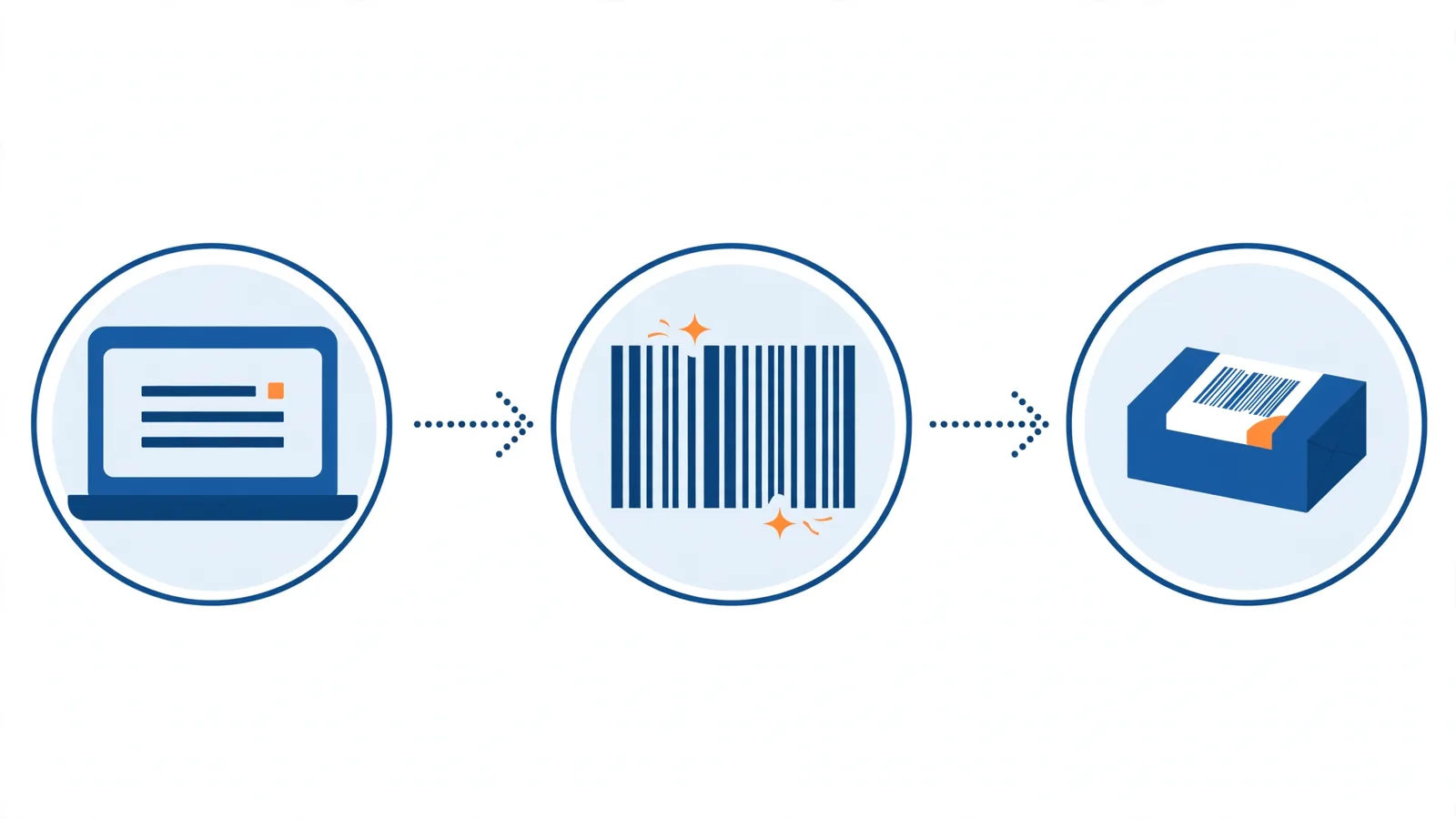
To make a barcode, you choose a barcode type that matches where it will be scanned, get the number or text it will carry, turn that data into an image with a barcode generator, and print it at a size scanners can read. The whole job takes a few minutes for one barcode; most problems come from the number or the print size, not from the generator.
Step 1: Choose the barcode type
The scanner decides the type. A store checkout reads UPC-A in the United States and Canada and EAN-13 in most other countries. Warehouse and shipping scanners usually read Code 128. Phone apps and 2D scanners read QR Code and Data Matrix.
| You are labelling | Use |
|---|---|
| A product sold in shops in the US or Canada | UPC-A |
| A product sold in shops elsewhere | EAN-13 |
| A carton or case of products | ITF-14 |
| A shelf, bin, asset or shipping label inside your business | Code 128 |
| A link on a flyer, menu or poster | QR Code |
| A small part or a device | Data Matrix |
Step 2: Get the right number
For internal labels you can use any numbering you like, such as your own SKUs or asset numbers. Keep one master list so no two items share a code.
For products sold in stores or online marketplaces, the number is a GTIN that starts with a company prefix licensed from GS1. Amazon, for example, says in its Seller Central help that it checks product UPCs against the GS1 database. A barcode generator draws the barcode, but it cannot make a number valid for retail.
The last digit of a UPC or EAN is a check digit calculated from the other digits. If you only have the first digits, the check digit calculator works it out.
Step 3: Generate the barcode image
- Open the free barcode generator and choose the type.
- Type or paste your number or text. For UPC and EAN you can leave out the check digit; it is added for you.
- Set the bar height and choose whether to show the number under the bars.
- Download the barcode as SVG for print artwork or PNG for documents and web pages.
If you need dozens or hundreds of codes, paste the whole list into the bulk barcode generator and download one ZIP file.
Step 4: Size the barcode for printing
Retail barcodes have rules. GS1 allows UPC and EAN barcodes from 80% to 200% of their standard size, and asks for a blank quiet zone on each side; for UPC-A that is at least 9 times the narrowest bar on the left and on the right.
- Resize the barcode evenly. Stretching it in one direction changes the bar widths.
- Do not crop the bars to make the barcode shorter.
- Keep text, folds, seams and the edge of the pack away from the bars.
- Print dark bars on a light background.
The barcode size guide lists the exact widths and heights for UPC, EAN and other types.
Step 5: Test before you print in quantity
Print one copy on the same printer and material you will use, then scan it with the scanner or app your customers or staff will use. Check that the number the scanner shows is exactly the number you entered. Only then print the full run.
Common mistakes when making a barcode
- Using a number that is not yours on a retail product. Marketplaces and stores can reject it.
- Dropping a leading zero. Spreadsheets often turn 036000291452 into 36000291452.
- Printing too small for the printer. Thin bars from a low-resolution printer blur together.
- Removing the margins around the bars to save space.
- Choosing the wrong type, such as Code 128 on a product meant for a store checkout.
Frequently asked questions
Can I make a barcode for free?
Yes. Online generators like ours make the barcode image for free. A retail UPC or EAN number is a separate thing that comes from GS1.
Can I make my own barcode numbers?
Yes, for internal use. For products sold in stores or on marketplaces, use a GTIN licensed from GS1.
What file format is best for a barcode?
SVG for printing, because it stays sharp at any size. PNG for documents, spreadsheets and web pages.
Can I make a barcode in Excel?
Yes. Make the barcode here, download the PNG and insert it into Excel as a picture. For many codes, use the bulk generator and insert the files you need.